
No thanks Im ok with google now forecastI like the weather animations. It is the best weather app Nobody else's can compare

You are using an out of date browser. It may not display this or other websites correctly.
You should upgrade or use an alternative browser.
You should upgrade or use an alternative browser.
Essential Official Android Thread
More options
Who Replied?The janitor gets to work on mainframes now. im at work bullshytin. Im building a 100 processor and 1TB memory machine calm the fukk down. Like I Said dude is full-a-shyt. The device is responsive. Every key input is registered. You been using android for how long???You dont know shyt breh shut the fukk up. Youre a fukking janitor at IBM. Them fumes must be getting to you. Just because YOU'RE not having the same issue doesnt mean that it doesnt exist.
God Youre A fakkit. Go find your father.
The Moto X targets the midrange segment of the market and will not compete directly with Apple, so it may not impact iPhone sales in the short term. Long-term may be a different story, as Google attempts to build its own ecosystem. Google's entry into the market could also pressure margins.
"Part of Apple's competitive edge has come from the fact that it tightly integrates its hardware and software together, producing innovative synergies that its hardware-centric competitors have a tougher time matching over the long term. Google's unified approach with its Motorola subsidiary appears to recognize this advantage, and they are clearly seeking to match it," said Goldman Sachs analyst Heather Bellini.
"Nevertheless, the impact may be negligible if Google’s in-house phones fail to generate meaningful share or if Google’s efforts weaken the broader Android ecosystem by alienating key OEM partners," she added.
"Part of Apple's competitive edge has come from the fact that it tightly integrates its hardware
and software together, producing innovative synergies that its hardware-centric competitors have a tougher time matching over the long term. Google's unified approach with its Motorola subsidiary appears to recognize this advantage, and they are clearly seeking to match it," said Goldman Sachs analyst Heather Bellini."Nevertheless, the impact may be negligible if Google’s in-house phones fail to generate meaningful share or if Google’s efforts weaken the broader Android ecosystem by alienating key OEM partners," she added.
Regarding Google's relationship with Samsung, Bellini said, "Moto X represents Google's attempt to achieve higher levels of mobile monetization, as it does not have to pay TAC (traffic acquisition cost) on this device and since a more meaningful presence in smartphones could help elevate Google’s bargaining positioning
Chromecast Hacks And Workarounds
Tweak Settings For Smoother Playback

Streaming music may not require a screaming fast network, but videos are another story. The smoothness of videos streamed or "casted" from your computer can vary depending on the power of your terminal and the strength of your wireless router.
It also depends on how big your media files are. Higher quality videos come in larger files, and if all that data is moving like molasses through your wireless network, you may want to ease the traffic jam by adjusting your settings.
Click on your browser's "Cast" button, choose "Options" and check out the "Tab projection quality" section. There, you can see selections for Standard (480p), High (720p) or Extreme (720p high bitrate). If High or Extreme is activated, and you experience insufferable lag or choppiness, try Standard instead.
What you need to know: This tip sacrifices a little quality for more seamless, less stuttery playback.
The takeaway: You can change your streaming quality, depending on the particular environment. So if you plan to bring the Chromecast to a friend's house, where the Wifi is killer, just boost the quality back up.
Tweak Settings For Smoother Playback
Streaming music may not require a screaming fast network, but videos are another story. The smoothness of videos streamed or "casted" from your computer can vary depending on the power of your terminal and the strength of your wireless router.
It also depends on how big your media files are. Higher quality videos come in larger files, and if all that data is moving like molasses through your wireless network, you may want to ease the traffic jam by adjusting your settings.
Click on your browser's "Cast" button, choose "Options" and check out the "Tab projection quality" section. There, you can see selections for Standard (480p), High (720p) or Extreme (720p high bitrate). If High or Extreme is activated, and you experience insufferable lag or choppiness, try Standard instead.
What you need to know: This tip sacrifices a little quality for more seamless, less stuttery playback.
The takeaway: You can change your streaming quality, depending on the particular environment. So if you plan to bring the Chromecast to a friend's house, where the Wifi is killer, just boost the quality back up.
Chromecast Hacks And Workarounds
1. Play Your Computer's Local Media

Access to local music and video files is obviously not Google's primary intention—in fact, Web streaming from the likes of Netflix and YouTube was pretty much the belle of the ball at its press event last week. But the company didn't make it impossible to access your home digital library, either. The secret to making it work lies with the tab casting feature.
Chrome on the desktop can open many file types. Just open a locally stored media file—whether amateur home footage, torrented files or other videos—within the browser, or drag and drop it onto the Chrome application. In general, if it plays in the tab, it should play just fine via Chromecast. Just tap on the "Cast" browser extension button to send it to the Chromecast.
What you need to know: The quality from a tab-casted video can appear fuzzy and/or pixelated, and you can experience other issues like hang-ups, skewed lip-syncing and lag, depending on the power of your originating device and the strength of your Wi-Fi network. Since audio files are generally much smaller than video, playing music wirelessly is more forgiving. And unfortunately, this only works in the desktop browser, as no mobile version of Chrome offers tab casting. Yet.
The takeaway: If a video file is available via Netflix, YouTube or Google Play, which directly support Chromecast's cloud streaming, use those apps instead. Otherwise, you may want to intentionally lower the streaming quality (see below).
2. Watch Your Friends' Shared Videos

Tab casting can not only free your local media files, it can also dish up your friends' music and videos too, if it can stream online (and doesn't require a Silverlight or Quicktime plugin).
Let's use the popular Plex service as an example. The free Web server, which streams media from home computers to mobiles and settop boxes, offers a sharing feature that can be pretty handy here. Plex users can actually grant other members full or limited access to their files on the Internet. Once again, since it plays in Chrome, it can also play via Chromecast.
Even better, in Plex's case, the Web interface is attractive and easy to use, making this accidental feature feel almost intentional.
What you need to know: Since it relies on tab casting, it's subject to the same video quality issues noted above.
The takeaway: It's a quick and easy way to view other people's shared media remotely. But don't expect stunning HD quality. In addition to any limitations presented by your computer hardware and Wi-Fi connection, you're at the mercy of your friend's computer/server and network.
3. Screen Cast Your Entire Desktop

Not only can you cast your tabs, but you can send your entire screen to the TV as well, thanks to screen casting. Access this feature via the drop-down menu you get from clicking the "Cast" button in the Chrome browser.
This feature has a big "experimental" label slapped all over it, and it should—it's buggy, laggy and crash-prone. However, even in this rough incarnation, it's still a benefit for those odd occasions when you need to share your whole desktop with a room full of people. (Fingers crossed that it will only get better with time.)
What you need to know: There's an important difference between tab casting and screen casting: Only the former can send audio. So if you play a video and screen cast it to your TV, the sound will still play through your computer's speakers, but not your TV speakers. And the video quality can be even laggier than tab casting.
The takeaway: This feature seems most useful for looking at photo slideshows or displaying web pages. For now.
1. Play Your Computer's Local Media
Access to local music and video files is obviously not Google's primary intention—in fact, Web streaming from the likes of Netflix and YouTube was pretty much the belle of the ball at its press event last week. But the company didn't make it impossible to access your home digital library, either. The secret to making it work lies with the tab casting feature.
Chrome on the desktop can open many file types. Just open a locally stored media file—whether amateur home footage, torrented files or other videos—within the browser, or drag and drop it onto the Chrome application. In general, if it plays in the tab, it should play just fine via Chromecast. Just tap on the "Cast" browser extension button to send it to the Chromecast.
What you need to know: The quality from a tab-casted video can appear fuzzy and/or pixelated, and you can experience other issues like hang-ups, skewed lip-syncing and lag, depending on the power of your originating device and the strength of your Wi-Fi network. Since audio files are generally much smaller than video, playing music wirelessly is more forgiving. And unfortunately, this only works in the desktop browser, as no mobile version of Chrome offers tab casting. Yet.
The takeaway: If a video file is available via Netflix, YouTube or Google Play, which directly support Chromecast's cloud streaming, use those apps instead. Otherwise, you may want to intentionally lower the streaming quality (see below).
2. Watch Your Friends' Shared Videos
Tab casting can not only free your local media files, it can also dish up your friends' music and videos too, if it can stream online (and doesn't require a Silverlight or Quicktime plugin).
Let's use the popular Plex service as an example. The free Web server, which streams media from home computers to mobiles and settop boxes, offers a sharing feature that can be pretty handy here. Plex users can actually grant other members full or limited access to their files on the Internet. Once again, since it plays in Chrome, it can also play via Chromecast.
Even better, in Plex's case, the Web interface is attractive and easy to use, making this accidental feature feel almost intentional.
What you need to know: Since it relies on tab casting, it's subject to the same video quality issues noted above.
The takeaway: It's a quick and easy way to view other people's shared media remotely. But don't expect stunning HD quality. In addition to any limitations presented by your computer hardware and Wi-Fi connection, you're at the mercy of your friend's computer/server and network.
3. Screen Cast Your Entire Desktop
Not only can you cast your tabs, but you can send your entire screen to the TV as well, thanks to screen casting. Access this feature via the drop-down menu you get from clicking the "Cast" button in the Chrome browser.
This feature has a big "experimental" label slapped all over it, and it should—it's buggy, laggy and crash-prone. However, even in this rough incarnation, it's still a benefit for those odd occasions when you need to share your whole desktop with a room full of people. (Fingers crossed that it will only get better with time.)
What you need to know: There's an important difference between tab casting and screen casting: Only the former can send audio. So if you play a video and screen cast it to your TV, the sound will still play through your computer's speakers, but not your TV speakers. And the video quality can be even laggier than tab casting.
The takeaway: This feature seems most useful for looking at photo slideshows or displaying web pages. For now.

I can hold my finger on the backspace not moving it and it will register me typing gibberish. I'm not the only person this has happened to. There's either a software issue or hardware.cut the fukkery out and learn to type better. Or use swype to trace
bro when you click the backspace aka X button nothing is registered. I suggest you try another keyboard or turn off haptic feedback.I can hold my finger on the backspace not moving it and it will register me typing gibberish. I'm not the only person this has happened to. There's either a software issue or hardware.
bro when you click the backspace aka X button nothing is registered. I suggest you try another keyboard or turn off haptic feedback.I can hold my finger on the backspace not moving it and it will register me typing gibberish. I'm not the only person this has happened to. There's either a software issue or hardware.

Google Now testing neighborhood news with new hyperlocal cards
Google Now could be getting a lot more topical. According to Quartz, Google is in the process of testing a brand new Now entry that would display "hyperlocal" news to users. The local news card would automatically surface articles about local businesses, nearby school districts, and events that have happened in the surrounding area. That information will reportedly by tailored to users based on their current location, the time of day, and their interests. For the time being, it's only being tested within Google, but the company confirmed to Quartz that the card was currently up and running.
While Google Now may be a logical place to surface local news, it won't necessarily be easy for Google to make it work. Tailoring news specifically to users' interests and locations is something that many companies have tried — and largely failed — to do before. Some of the bigger attempts include AOL with Patch and NBC News with EveryBlock. Patch has struggled to become profitable, but is still running, while EveryBlock ran for five years before being shut down this February. For Google, it could be a different story: the company already has a robust news aggregator in Google News, and hyperlocal news wouldn't have to be a full-blown product, just a useful feature.
Recent Verizon Roadmap Still Shows Moto X Arriving on August 23 at Verizon

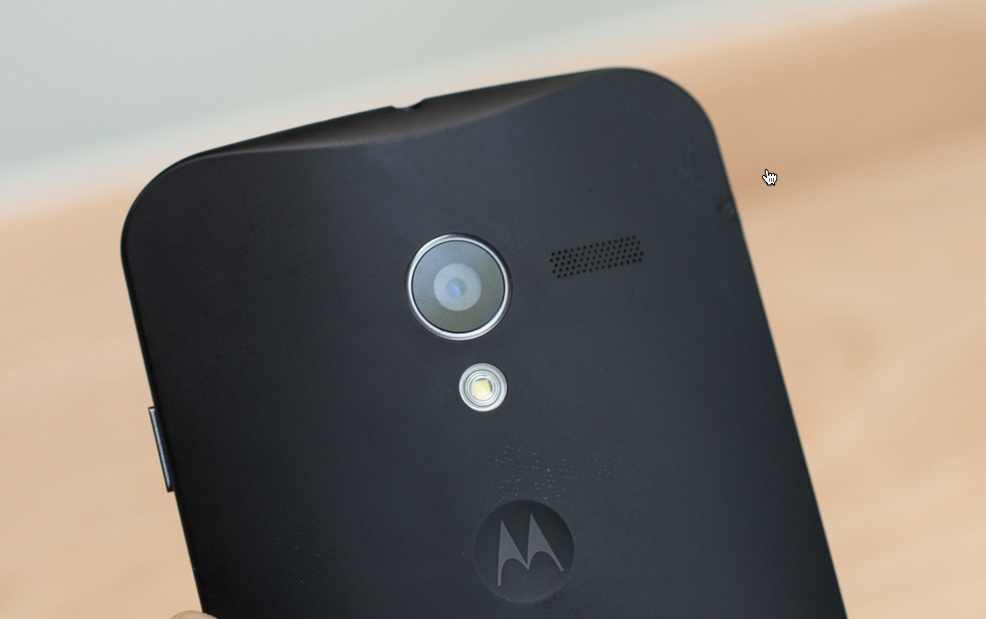
A couple of weeks ago, a Verizon roadmap showed a potential launch date of August 23 for the Moto X. According to sources of ours, that date has not changed with less than a day to go until the phone’s unveiling. I wouldn’t necessarily say I find this all that surprising, but with the flip-flopping of dates for devices like the HTC One, it is a little.
New sources are also giving us an HTC One launch date of 8/15, which we reported earlier. Verizon is still showing the DROID ULTRA and MAXX with launch dates of August 20 as well, but that was announced last week at both phones’ unveilings.
Last, the DROID Mini may not arrive until August 29.
One thing to keep in mind with the Moto X launch date for Verizon, is that we could always see the phone available sooner from other carriers. Verizon has typically released phones later than others, just look at the Galaxy S4 and Note 2. So even if Big Red goes with 8/23, don’t be surprised if AT&T or T-Mobile are ready sooner. We’ll know for sure tomorrow.
New Device launch Schedule:
A couple of weeks ago, a Verizon roadmap showed a potential launch date of August 23 for the Moto X. According to sources of ours, that date has not changed with less than a day to go until the phone’s unveiling. I wouldn’t necessarily say I find this all that surprising, but with the flip-flopping of dates for devices like the HTC One, it is a little.
New sources are also giving us an HTC One launch date of 8/15, which we reported earlier. Verizon is still showing the DROID ULTRA and MAXX with launch dates of August 20 as well, but that was announced last week at both phones’ unveilings.
Last, the DROID Mini may not arrive until August 29.
One thing to keep in mind with the Moto X launch date for Verizon, is that we could always see the phone available sooner from other carriers. Verizon has typically released phones later than others, just look at the Galaxy S4 and Note 2. So even if Big Red goes with 8/23, don’t be surprised if AT&T or T-Mobile are ready sooner. We’ll know for sure tomorrow.
New Device launch Schedule:
- HTC One – 8/15/13- Replacing DNA
- LG Enact- 8/15/13– Basic Phone
- Motorola X – 8/23/13– High end Smartphone
- Motorola Droid Ultra- 8/20/13– In store Launch
- Motorola Droid Maxx- 8/20/13– In store Launch
- Motorola Droid Mini- 8/29/13– In Store Launch

ExodusNirvana
Change is inevitable...
So it's either I roll with the Moto X and trust that Google truly has made a phone with lesser specs that is fully optimized for the hardware, allowing it to stand toe to toe with the big dogs...
OR
The Galaxy S4....where I'd rely on the open source community for true optimization but where we're also now learning that Sammy is hardcoding their hardware to give false benchmark tests
OR
The Galaxy S4....where I'd rely on the open source community for true optimization but where we're also now learning that Sammy is hardcoding their hardware to give false benchmark tests
So it's either I roll with the Moto X and trust that Google truly has made a phone with lesser specs that is fully optimized for the hardware, allowing it to stand toe to toe with the big dogs...
OR
The Galaxy S4....where I'd rely on the open source community for true optimization but where we're also now learning that Sammy is hardcoding their hardware to give false benchmark tests
The S4 is a nice phone but I hear it's not far from the S3. And I also hear that Sammy will be revamping their entire Galaxy line the next time around so I wouldn't waste my money on an S4. I have a note 2 and looked hard into the S4 but if I were to go that route, I'd go with an S3 and save some money.
But this moto x looks intriguing .
